
Adding & Removing Users
One person from each agency may have permission to update users.
Please email the Name & Email address of the assigned individual to hello@monarchlink.com
NOTE: Adding an outside user is NOT permitted. Users must be employed within the primary contact's agency/organization/company.

How to Add Users
Steps to add a new user is as follows:
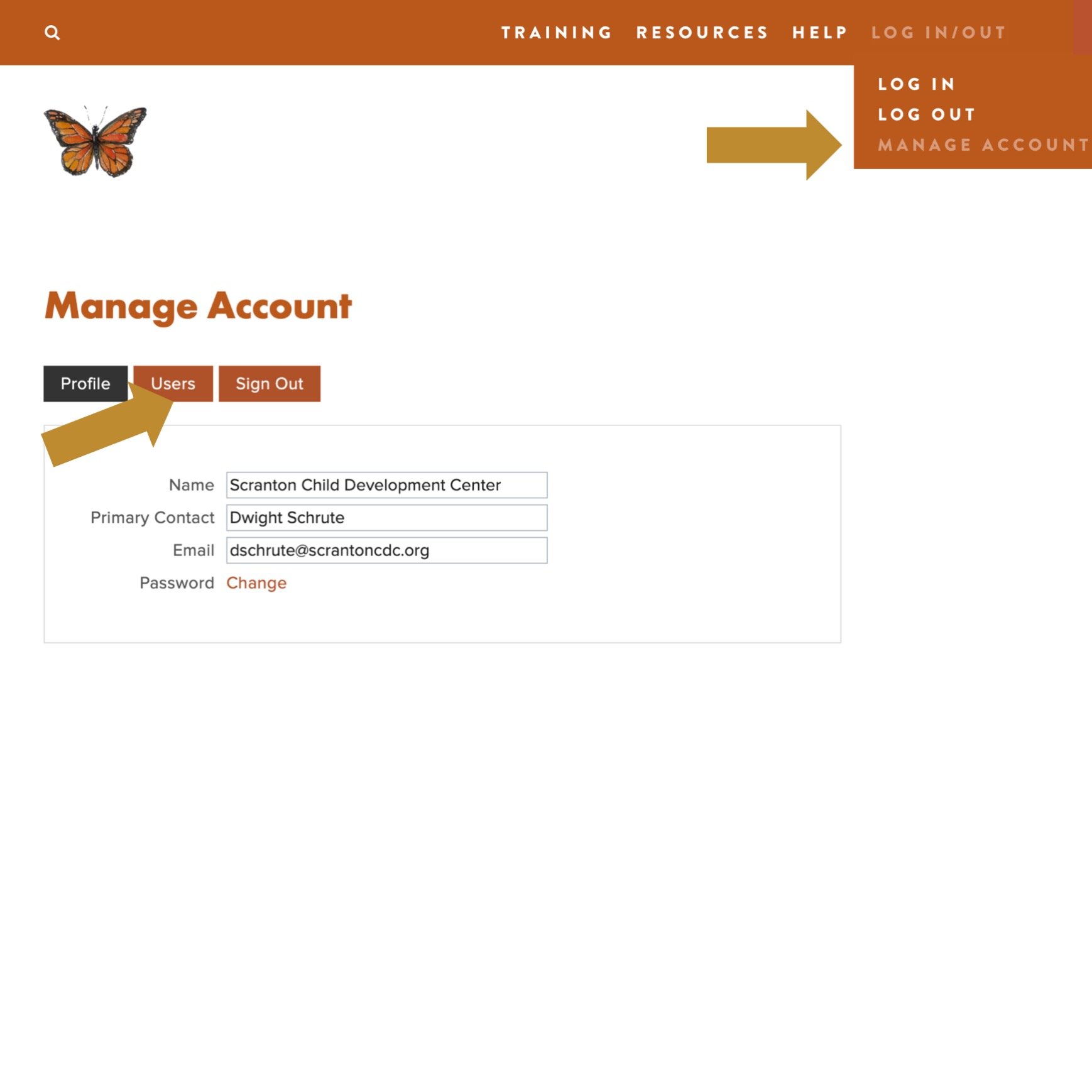
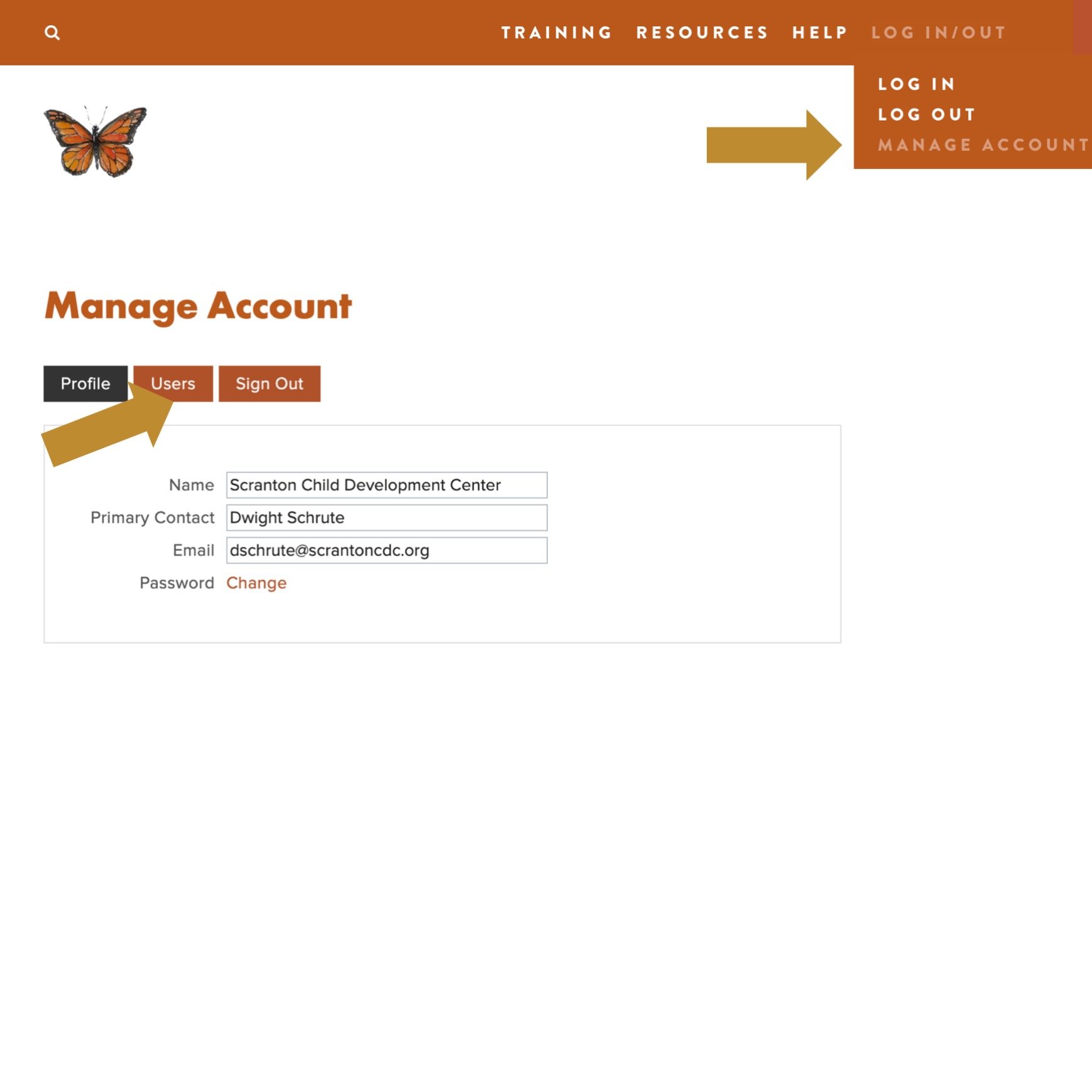
Select Manage Account from tool bar
Select Users tab
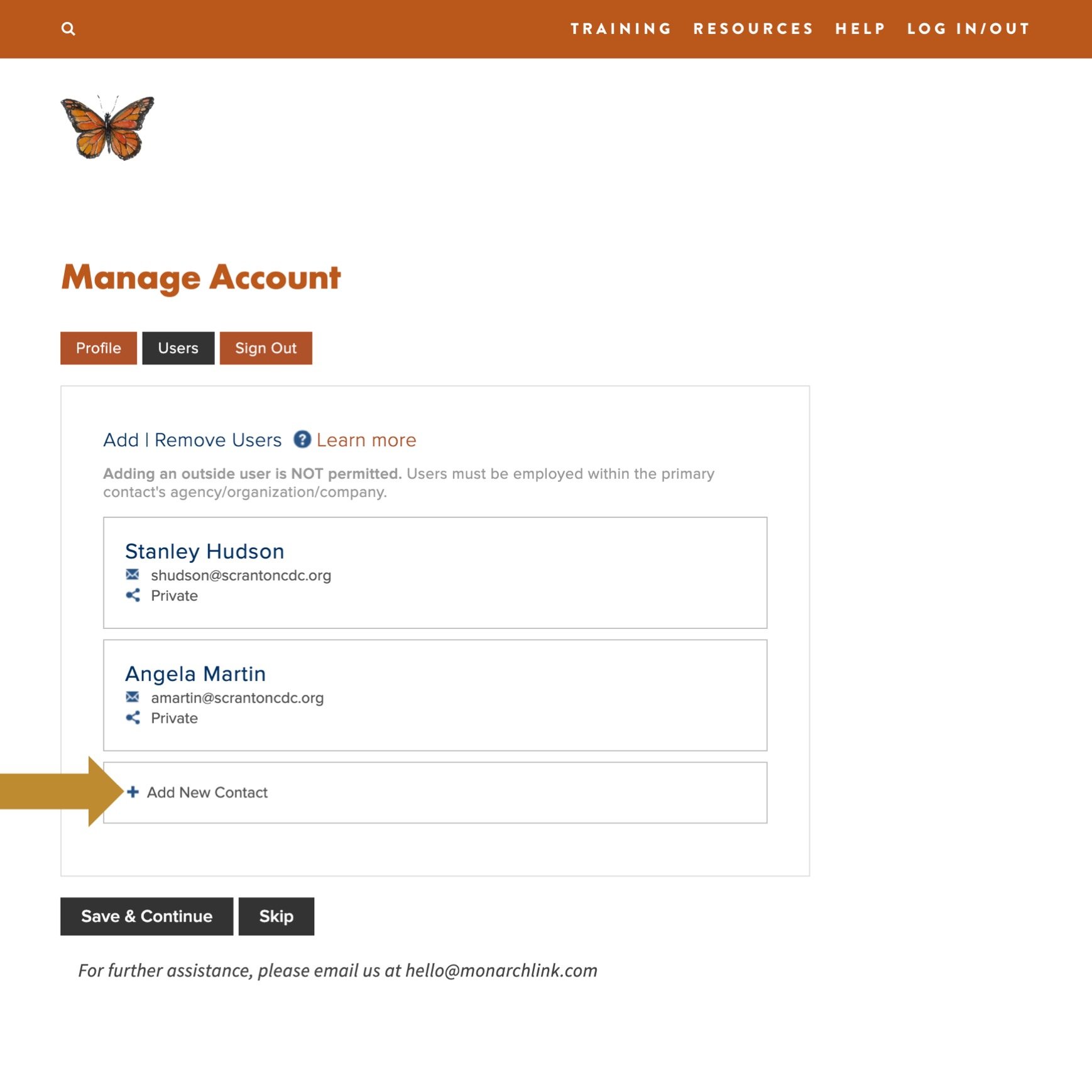
Scroll-down & click-on + Add New Contact
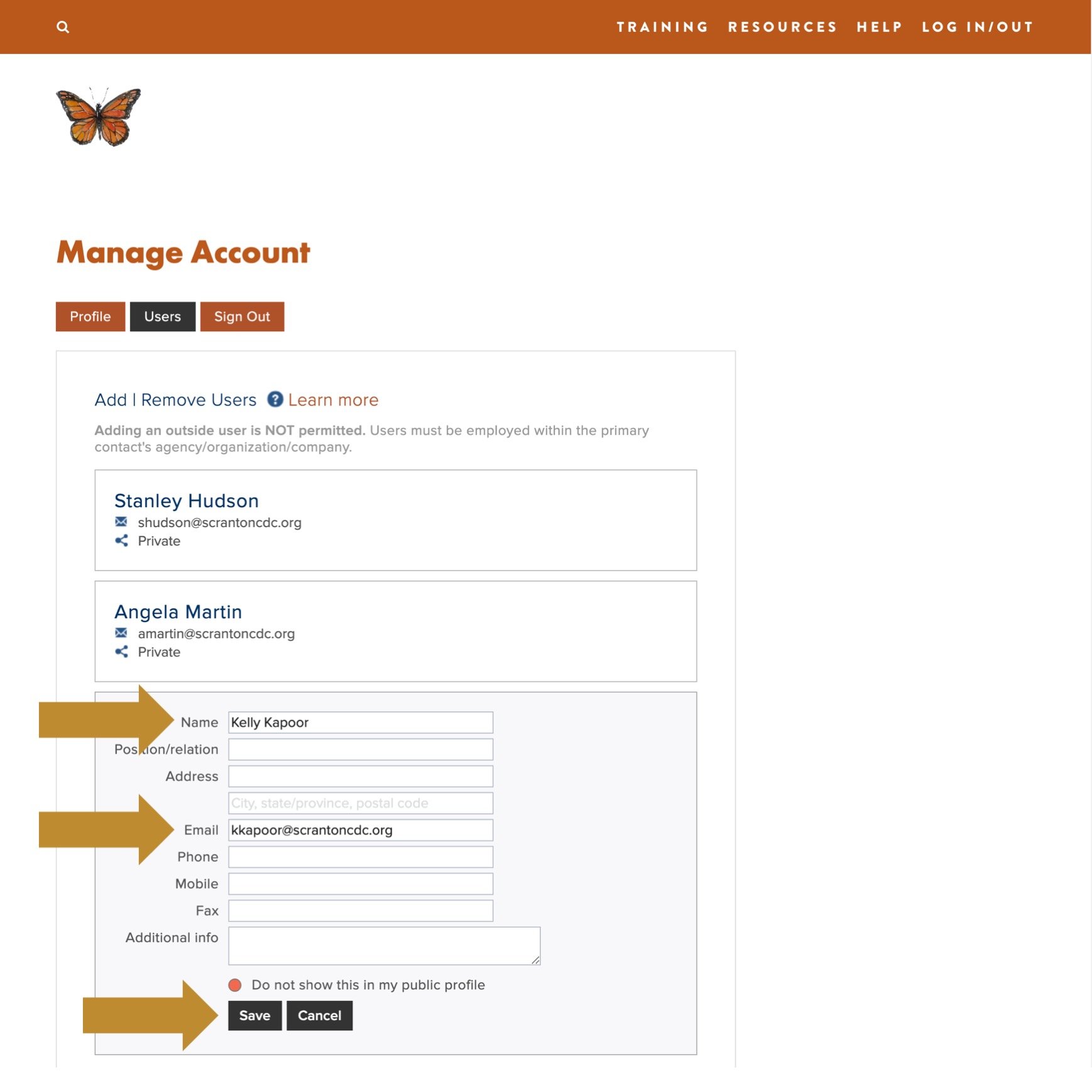
Input Name | Email
Press Save
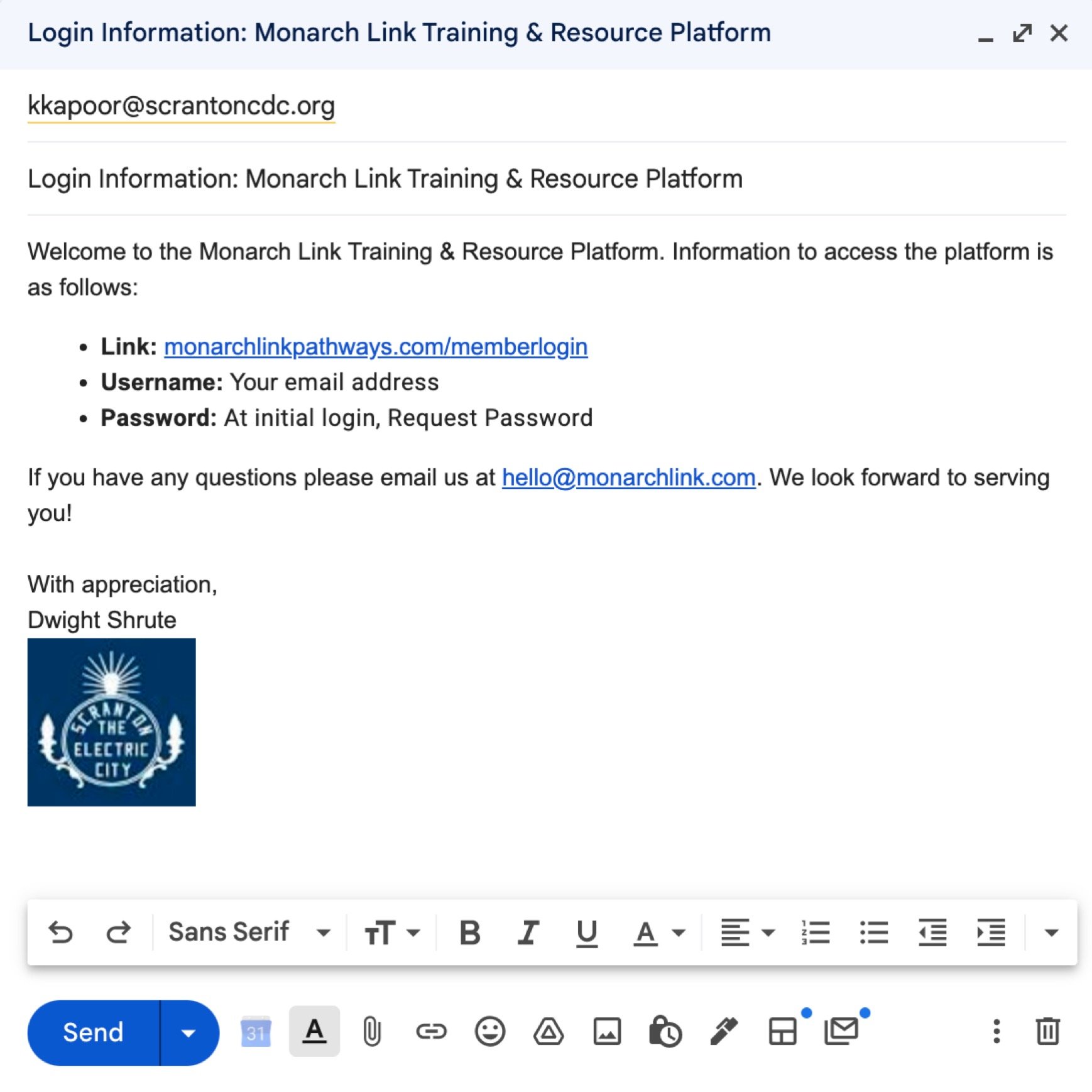
Email User login information (this is not automatic, you will need to send the following information to the new user)
Username: Email address
Password: Request password at initial login
NOTE: Adding an outside user is NOT permitted. Users must be employed within the primary contact's agency/organization/company.
How to Remove Users >
Steps to remove a user is as follows:
Select Manage Account from tool bar
Select Users tab
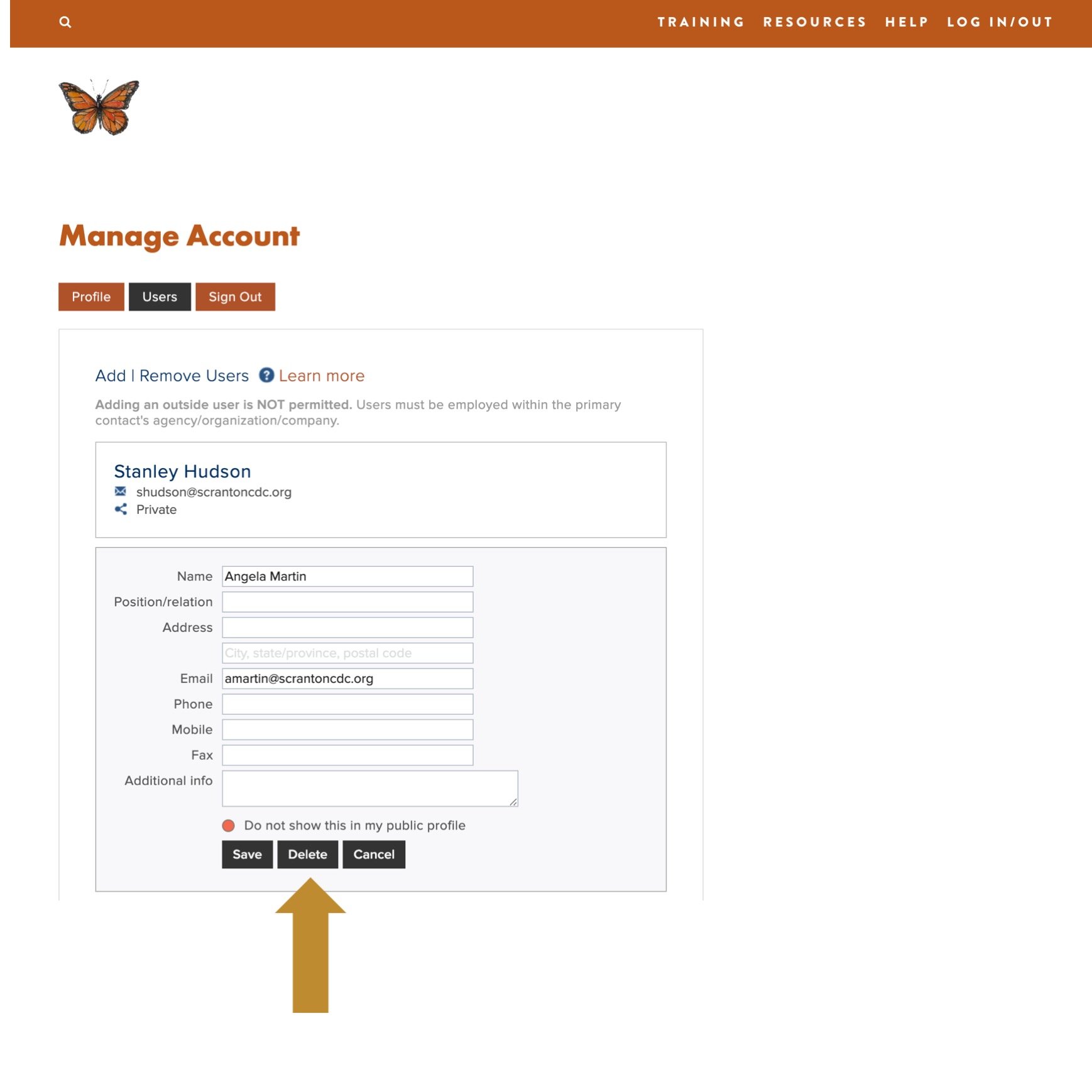
Scroll-down & select Edit Contact
Press Delete

Adding Bulk Users >
To add a bulk number of users, email the User Worksheet to hello@monarchlink.com